10/23/2017

Office 365 / SharePoint Online – Where’s Site Settings This Week?


SharePoint Online is kind of like the weather in Cincinnati… if you don’t like it, hang around, it will change.

Where’s Site Settings?

It depends… today, 10/23/2017 it’s here:

  • Classic UI pages: It’s where it has always been… in the Settings (gear) menu.
  • Modern UI pages: It’s…  Settings (gear), Site Info, Site Information, and then at the bottom of the popup panel, click “View all site settings”.
  • Modern UI Site Contents page: Top right corner, click Settings


I wonder will it will be next week?


Purpose of the change?

No real clue… If it was to surface the most often used Site Settings, they are not the ones I use most often. Are the most often used options on your list Delete Site, rename the site or change the description or icon.

image

4/13/2017

A SharePoint REST API Tester with an AJAX and Workflow Writer


A JavaScript project to use with a Content Editor Web Part to test SharePoint REST API calls, and create AJAX sample code and SharePoint Designer 2013 Workflow steps. It includes over 40 ready to test samples to query SharePoint and to create and delete items, folders, lists and sites.

While learning the SharePoint REST API, I created a little REST tester Content Editor Web Part. Later when I explored SharePoint 2013 Workflow REST calls I expanded the tool to include step by step instructions to add the calls to a workflow. After presenting this at the Cincinnati SharePoint User Group and at the Nashville SharePoint Saturday I decided to take the time to clean it up a bit and share it here.

What you will need:

You can also download the file from the GitHub project.


This is the main screen.

image

This is partial list of the sample REST calls. A more complete list is at the end of this article, and I’ll be adding more over time.

imageimageimage


The in the page test of a REST call.

image


The generated AJAX Code Sample

image


The SharePoint 2013 Workflow Steps for the Web Service Call

image


Steps to install to your SharePoint Site
  1. If your master page is not already loading jQuery, download jQuery (just about any version) and upload to the Site Pages library. 
  2. Download the SharePointRESTtester.html file to your PC. 
  3. Edit the file and update the line that loads jQuery to point your jQuery file or CDN.
  4. If your master page already loads jQuery, then delete the <script> block that loads the jQuery file.(the first line of the file)
  5. Upload the SharePointRESTtester.html file to your Site Pages library. (Copy the URL to the file.)
  6. Add a Web Part Page to your project:
    1. In the Site Pages library, click the FILES ribbon, click New Document and click Web Part Page.
    2. Enter a page name like "SharePointRESTtester". 
    3. From the library dropdown select Site Pages
    4. Click Create.
  7. Click Add a Web Part
  8. Add a Content Editor Web Part.
  9. Click the web part's dropdown and click Edit Web Part.
  10. Enter or paste the path to the SharePointRESTtester.html file.
  11. Click OK and then in the ribbon click Stop Editing.
  12. You should now see the tester. Click the dropdown and you should see data in the boxes. If not, then the jQuery library did not get loaded.
  13. Add to your Quick Launch or your Follow list!


To use the tester…
  1. Select a sample from the dropdown, or enter your own URL, Method, Header JSON and if needed, the Body JSON.
  2. Find the Do It! button. The first check box will actually run the code. *** Warning Will Robinson, stuff could get added, changed or deleted! ***
  3. The second and third checkboxes simple hide or show the JavaScript Ajax code and the SharePoint 2013 workflow steps.


SharePoint REST Examples for Queries

  • Get information about the current site collection.
  • Get information about the current web.
  • Get the Regional Settings for the current web.
  • Get the Time Zone for the current web.
  • Get SharePoint's list of Time Zones.
  • Get a list of all webs below the current web.
  • Get the primary site collection administrator (Owner).
  • Get the primary site collection Secondary Contact.
  • Get a web's LastItemModifiedDate
  • Get a list of lists from the current web. (all data)
  • Get a list of lists from the current web. (Just the title)
  • Get a count of items in a library.
  • Get a count of items in a library. (Option #2)
  • Get all items in a list/library.
  • Get all items in a library with filename and path.
  • Get a list folder's properties.
  • Get a count of items in a list folder.
  • Get all items in a list/library filtered by date.
  • Get all items in web level recycle bin.
  • Get selected properties of all items in web level recycle bin.
  • Get all items in a list/library filtered by a range of dates.
  • Search
  • People Search

SharePoint REST Examples for Lists

  • Create a new list
  • Add a new item to a list
  • Add a new folder to a list
  • Delete an item from a list using ID
  • Delete an item, to the Recycle Bin, from a list using ID
  • Update an item using ID
  • Delete a list
  • Delete a list to the Recycle Bin

SharePoint REST Examples for Sites

  • Create a new subsite.
  • Delete a site (Warning Will Robinson! Does not go to the Recycle Bin!)

SharePoint REST Examples for User Profiles

  • Get User Profile info about the current user.
  • Get all User Profile properties for a user.
  • Get User Profile info about a user's manager.

SharePoint REST Examples for Permissions

  • Get a list of Role Definitions for a site.
  • Get a list of Site Users. The ID is useful when setting permissions.
  • Get a list of Site Groups. The ID is useful when setting permissions.
  • Get a list of Site Groups by name.
  • Get a list of Site Groups where name contains 'string'.
  • Break inheritance on a subsite.
  • Break inheritance on a list.
  • Break inheritance on a list item.
  • Grant permissions (Role Assignment) on a list.
  • Remove permissions (Role Assignment) on a list.

SharePoint REST Examples for Filter Select and OrderBy

  • Get a list of Site Users who are not Site Collection admins. Get selected fields and sort.

SharePoint REST Examples for SharePoint 2010 style REST - _vti_bin/ListData.svc

  • Get a list of lists and libraries (EntitySets).
  • Find list items greater than a date.
  • Find list items between two dates.


.

3/31/2017

SharePoint Date Search Tips


Applies to SharePoint 2013 and later.


A few SharePoint Search Tips!


Time Zone

Search internally stores dates in Universal Time. Because of this, a file uploaded at “2/7/2017 10:50 PM EST” will not be found with a search for “Write=2/7/2017” (or “LastUpdateDate=2/7/2017”). That file will be found with a search using “Write=2/8/2017”.


Date Ranges

You can create searches on date ranges using “..”.

      Example: write=2/1/2017..2/8/2017


Named Date Ranges

You can also use the names of some date ranges. Quotes are required around any range name that includes a space.

     Example: write="this week"

    image

The supported ranges are:

  • today
  • yesterday
  • this week
  • this month
  • last month
  • this year
  • last year

But sadly… no “"last week”!


Comparison Operators

Note: All of the following operators work with the DateTime, Integer, Decimal and Double data types.

Operator


Equals

<

Less than

>

Greater than

<=

Less than or equal to

>=

Greater than or equal to

<>

Not equal to

..

Range


.

11/17/2016

Creating Random Numbers in SharePoint Calculated Columns


One of my examples for tonight’s Cincinnati SharePoint User Group meeting! See you there!


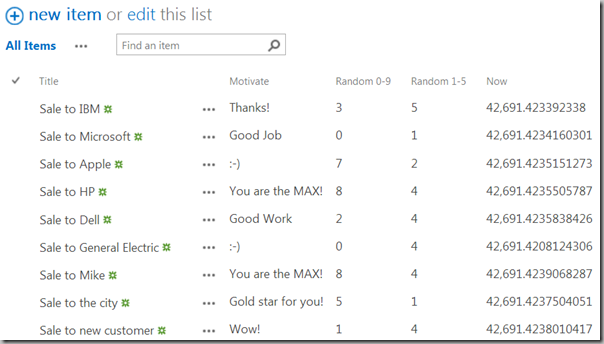
I wanted to add a "motivational" message to a list of new sales. To be "fair" (i.e. I did not want to think and create a good algorithm!) I wanted the messages to be random. Something like this:
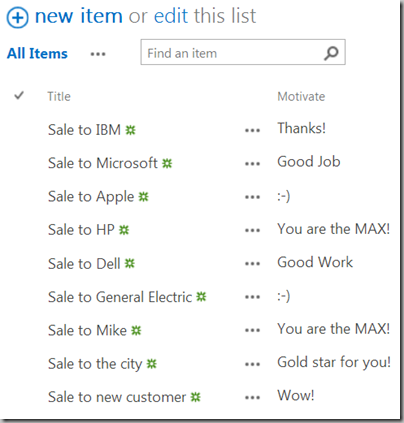
   image

But… Calculated Columns do not support the Excel RAND() or RANDBETWEEN() functions.


So, how to get a random number???

Calculated columns do support the =Now() function. This returns a numeric value that represents the current date and time. If formatted as a Date, or Date and Time, then you will see the current date. But, if you format it as Single Line of Text you will see something like: 42,691.3977137731, or a few seconds later: 42,691.3983521875. The last number starts to look like a random number! And if accurate, it changes every .0000000001 of a day, or about every 0.00000864 seconds. Close enough for me.


Get a random number between 0 and 9.

This one looks easy, just pull off the last digit from NOW()!

    =RIGHT( NOW() ,1)

But.. there’s one flaw with this… The last digit of a fractional value is never zero!  (I.e. you will never see .111111110 unless custom formatted.)

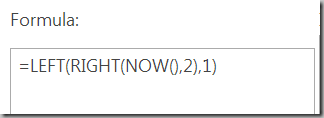
So we need to pull off the next to last digit!

  =LEFT( RIGHT( NOW() ,2) ,1 )
image

image


Get a random number between 1 and 5

With just a little math we can limit the range a bit. As we don’t want the zero value we can skip the LEFT function for this one.

   =ROUND( RIGHT( NOW()) / 2+0.5 ,0)

   image

Here’s a sample:

   image


Get a random number between 0 and 999.

If you need bigger numbers, just return more digits:

    =RIGHT(NOW(),3)

As RIGHT creates a string (text), you will get leading zeros (“012”). To remove the leading zeros just do some math!

    = 0 + RIGHT(NOW(),3)

   image

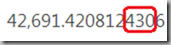
But… (there’s always a “but”), this will never return a value that ends with a zero. So… back to the LEFT function:

    =LEFT( RIGHT(NOW(),4), 3)

I.e. get the left three of the right four digits…
image


Random Messages?

This little exercise started out to create random messages. All we need to do is combine a random number with the CHOOSE function. As CHOOSE starts with item 1 and not item 0, we will need to add one to the random number.

   =CHOOSE( LEFT( RIGHT( NOW() ,2), 1) + 1, "Good Job", "Wow!", "Good Work", "Thanks!", "Could be better",
                      "Gold star for you!", "a free coffee for you!",":-)", "You are the MAX!","Do it again!" )

image


Notes

  • These are not guaranteed to be mathematically pure random numbers!
  • The values depend on the exact instant that an item is added to a list and will change with each edit. (But will not change with each view.)

.

Note to spammers!

Spammers, don't waste your time... all posts are moderated. If your comment includes unrelated links, is advertising, or just pure spam, it will never be seen.