
I’m often chasing one SharePoint rabbit or another down a rabbit hole and spending hours there when I only wanted to ask the rabbit one simple question. In this case the question was who is “Everyone” and are they related to “NT AUTHORITY\Authenticated Users”. A simple question, or so I had thought. In this rabbit hole I found all kinds of interesting accounts, so I thought that I’d take a few notes while I was there. As to “Everyone”, I’ll follow up with another blog article. I also got distracted by two Office 365 users hanging around the hole named “Guest Contributor” and “Guest Reader” that will also get their own article.
If you would like to dive into the rabbit hole, here’s a few tools to investigate user accounts:
- PowerShell on prem:
$site = Get-SPSite http://yourDomain/sites/yourSite
$site2.RootWeb.AllUsers | FT –AutoSize - PowerShell for Office 365:
Get-SPOUser -Site http://yourDomain/sites/yourSite | Select DisplayName, LoginName - In the browser:
- Go to Settings (gear), Site Settings, People and Groups
- Edit the URL and change the GroupId to 0 (“?MembershipGroupId=0”)
- Click any interesting user name. If the user has a User Profile you will probably be redirected to their profile page. If not, you will be redirected to userdisp.aspx where you can see the user name and their internal Account property as listed in the table below.
- Third party security and auditing tools.
Claims Based Authentication SharePoint 2013 and later uses Claims Based Authentication which can support more than one authentication source. This slightly complicates the UserLogin property as it must have both the user name and the claims source data in the property value. In a non-Claims system the user name might be as simple as contoso\msmith. In a Claims system you need to know where the user was authenticated, so you end up with UserLogins that might look like i:0#.w|contoso\msmith for a Windows AD user or i:0#.f|ContosoFBA|susan for a Forms Based Authentication user.
If you would like to learn more about the Claims identity codes (“c:0!.s”, etc.) see: http://social.technet.microsoft.com/wiki/contents/articles/13921.sharepoint-2013-claims-encoding-also-valuable-for-sharepoint-2010.aspx
and
http://www.wictorwilen.se/Post/How-Claims-encoding-works-in-SharePoint-2010.aspx
The Users 
Who are all of these users? Well… I’m still negotiating with the rabbit for more details, but I’ll soon add these articles with what I have discovered:
SharePoint: All Users vs. Everyone vs. Everyone But External vs. NT AUTHORITY\AUTHENTICATED USERS SharePoint Online “Guest Contributor” and “Guest Reader” - Who’s Guest Contributor,
and what are they doing in my library? SharePoint internal and hidden accounts hiding in your Site Collection For now:
- NT AUTHORITY\AUTHENTICATED USERS represents all of the users in your Active Directory, on prem or in the cloud.
- Everyone at the AD level is NT AUTHORITY\AUTHENTICATED USERS plus the Guest account. The Guest is disabled both by default and as a best practice. (You don’t see this one in SharePoint, but it is often listed as being the same as the SharePoint “Everyone”.)
- Everyone is defined at the SharePoint level and includes all users authenticated to SharePoint.
- Everyone except external users is found in SharePoint Online / Office 365 and is as named. External users are people not in your Active Directory, most likely not employees, who got their access from site members clicking the SHARE buttons.
- All Users (<somename>) is SharePoint defined and represents all of the users from a selected authentication provider. (If I created a Forms Based Authentication provider named “Vendors” then I would have “Everyone (Vendors)”
- All Users (windows) is SharePoint defined and is same as NT AUTHORITY\AUTHENTICATED USERS. After adding “All Users (windows)” to a site it is displayed as “All Users (windows)” in 2013 on prem and 2016 on prem, but is displayed as NT AUTHORITY\AUTHENTICATED USERS in Office 365.
- Guest Contributor and Guest Reader are at this time only found in SharePoint Online / Office 365 and represent users with anonymous / link access.
Best Practices
I was reviewing some training materials recently and ran across a statement to the effect you should put NT AUTHORITY\AUTHENTICATED USERS in all of your site Visitors groups so everyone can find content in SharePoint. Should you do this? Should everything in your SharePoint be freely accessible to everyone who can logon to your network? Contractors, vendors, summer co-ops, part timers? If you don’t already have a policy or governance on this, then you should be working on it.
SharePoint does not give us any way to prevent the use of the “Everyone” accounts, so you will need to deal with this through education and auditing.
UPDATE! Anders Rask responded to this post with info about a SharePoint Online cmdlet that can hide these “everyone” options in the people pickers. Turns out there are three options:
Set-SPOTenant -ShowEveryoneClaim $false
Set-SPOTenant -ShowEveryoneExceptExternalUsersClaim $false
Set-SPOTenant -ShowAllUsersClaim $false
The Set-SPOTenant cmdlet: https://technet.microsoft.com/en-us/library/fp161390.aspx
Blog: https://blogs.office.com/2015/07/16/new-it-management-controls-added-to-onedrive-for-business/
Here’s a short list of best practices. The term “everyone” used here includes NT AUTHORITY\AUTHENTICATED USERS and any account that starts with “Everyone” or “All Users”.
- Educate your users on security, including the use of the “everyone” accounts.
- Do not use “everyone” accounts if a site contains non-public data.
- Document who “everyone” is. There’s more than one “everyone” group in SharePoint.
- Perform regular audits using PowerShell or 3rd party tools to track the usage of “everyone” groups.
- Document, audit and enforce your SharePoint content policies. Document what is allowed, and what is not allowed to be stored in SharePoint.
- If you do encourage the use of the “everyone” groups, add a banner to the top of every page that declares “Do not post confidential data in this SharePoint site! It can be seen by everyone with network access.”
The Built-In Accounts
While your SharePoint may vary… see the Notes column… here’s a list of the accounts that may include users other than those who you were expecting. This is not complete, so if you discover others please post a comment to this article.
DisplayName UserLogin or SystemUserKeyProperty Notes c:0!.s|forms%3amembership Only O365 c:0!.s|windows Same as NT AUTHORITY\ authenticated users All Users (yourFBAMembershipProviderName) c:0!.s|forms%3aYourFBAMembershipProviderName Form Based Authentication Everyone c:0(.s|true Everyone except external users c:0-.f|rolemanager|spo-grid-all-users/17b83262-5265-… Only O365 (ID will vary) NT AUTHORITY\ authenticated users c:0!.s|windows Guest Contributor SHAREPOINT\writer_9e8a77849f89425c9cff6a6af5175… ID varies with share Guest Reader SHAREPOINT\reader_cb6f6371456b4542ba0609638a4… _SPOCacheFull ylo001\_spocachefull Only O365. Visible only from PowerShell _SPOCacheRead ylo001\_spocacheread Only O365. Visible only from PowerShell _spocrawler_17_3910 ylo001\_spocrawler_17_3910 Only O365 (ID will vary) System Account SHAREPOINT\system Visible only from PowerShell System Account S-1-0-0 SystemUserKeyProperty Company Administrator s-1-5-21-1851826741-1401831065-3463747319-87287… Only O365 (ID will vary) Typical user (Sam Conklin) samc@yourDomain.onmicrosoft.com As seen in O365 PowerShell Typical user (Sam Conklin) i:0#.w|yourDomain\samc As seen in On Prem PowerShell Typical user (Sam Conklin) i:0).w|s-1-5-21-2499188511-2905385804-3446143336-… SystemUserKeyProperty Typical FBA user (Susan) i:0#.f|YourFBAMembershipProviderName|susan Form Based Authentication
.
3/11/2016
New SharePoint 2016 Courses Coming from Microsoft
Microsoft is releasing two new SharePoint 2016 administrator courses in July. The courses have a new numbering scheme to better reflect the “Part 1” and “Part 2” nature of the pair. 20339-1 and 20339-2. While the focus is on on-premises SharePoint 2016, some Office 365 content is included.
Course 20339-1: Planning and Administering SharePoint 2016
https://www.microsoft.com/en-sg/learning/course.aspx?cid=20339-1
Publish date: July 8, 2016
Course 20339-2: Advanced Technologies of SharePoint 2016
https://www.microsoft.com/en-sg/learning/course.aspx?cid=20339-2
Publish date: July 21, 2016
.
3/10/2016
SharePoint: I Just Love Consistency! SharePoint, Not So Much
SharePoint 2016 is so similar to SharePoint Online / Office 365 that it’s sometimes hard to tell which version you are in. I just ran across an odd change from the past versions. How do you share or break inheritance on a list item?
The steps are different and the end results are different. And I thought 2016 was supposed to be SharePoint Online brought onsite.
SharePoint 2013
- Shared With is available in the ITEMS ribbon and the ribbon of the View Properties page.
- The “…” menu has a Shared With option:

- The above link takes you to the Shared With popup.
SharePoint Online / Office 365
- Shared With is available in the ITEMS ribbon and the ribbon of the View Properties page.
- The “…” menu has a Share option:

- The above link takes you to the Shared With popup.
SharePoint 2016
- Shared With is grayed out in the ITEMS ribbon, but is available in the ribbon of the View Properties page.
- The “…” menu has an Advanced popout that has a Manage Permissions option:

- The above link takes you to the user.aspx Permissions page.
I write training materials and really wish I was paid by the word or page! These detail differences waste hours and complicate training!
.
SharePoint: Undocumented Pending Shares Page
Article applies to SharePoint 2013, SharePoint Online and SharePoint 2016.

Did you ever wonder after using the Share buttons in SharePoint if the Site Owner ever responded to your request, responded with a question, or approved the request?
The My Permissions page
As I can’t find any documentation, I’ll call this undocumented for now… After a bit of web searching I did find a mention of the page in an Ignite presentation. In any case, this page lists the status of pending requests and lets the user who made the request check and send messages to the site owners. Requests that have been approved or declined will not be listed here.
The site owner can see your requests by going to Settings (gear), Site Settings, Site Permissions and clicking “Show access requests and invitations”. This will take them to the Access Requests page at _layouts/Access%20Requests/pendingreq.aspx.
You can check your pending requests by going to:
http://yourDomain/sites/yourSite/_layouts/mypermissions.aspx
This link will redirect to /_layouts/15 for now and may change in future versions.
Of course, no one knows about this page. There are no out of the box links to it. And… the site owner will probably not know to click the “SEND” button to start a conversation with the person who made the request.
If “Sharing” is important in your organization, you will need to provide some training, easy access to a link to the MyPermissions page, and do some work to “drive adoption”.

Details:
- Only “Pending” requests are displayed. Approved requests are not.
- You can click the “…” to see messages from the site owner, or to send a message to the site owner.
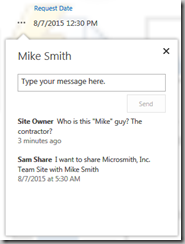
- This pending invites listed are unique to the current site. I.e. each site has its on MyPermissions page.
.
Subscribe to:
Comments (Atom)
SharePoint 2013 and later uses Claims Based Authentication which can support more than one authentication source. This slightly complicates the UserLogin property as it must have both the user name and the claims source data in the property value. In a non-Claims system the user name might be as simple as contoso\msmith. In a Claims system you need to know where the user was authenticated, so you end up with UserLogins that might look like i:0#.w|contoso\msmith for a Windows AD user or i:0#.f|ContosoFBA|susan for a Forms Based Authentication user.
If you would like to learn more about the Claims identity codes (“c:0!.s”, etc.) see: http://social.technet.microsoft.com/wiki/contents/articles/13921.sharepoint-2013-claims-encoding-also-valuable-for-sharepoint-2010.aspx
and
http://www.wictorwilen.se/Post/How-Claims-encoding-works-in-SharePoint-2010.aspx

Who are all of these users? Well… I’m still negotiating with the rabbit for more details, but I’ll soon add these articles with what I have discovered:
and what are they doing in my library?
For now:
- NT AUTHORITY\AUTHENTICATED USERS represents all of the users in your Active Directory, on prem or in the cloud.
- Everyone at the AD level is NT AUTHORITY\AUTHENTICATED USERS plus the Guest account. The Guest is disabled both by default and as a best practice. (You don’t see this one in SharePoint, but it is often listed as being the same as the SharePoint “Everyone”.)
- Everyone is defined at the SharePoint level and includes all users authenticated to SharePoint.
- Everyone except external users is found in SharePoint Online / Office 365 and is as named. External users are people not in your Active Directory, most likely not employees, who got their access from site members clicking the SHARE buttons.
- All Users (<somename>) is SharePoint defined and represents all of the users from a selected authentication provider. (If I created a Forms Based Authentication provider named “Vendors” then I would have “Everyone (Vendors)”
- All Users (windows) is SharePoint defined and is same as NT AUTHORITY\AUTHENTICATED USERS. After adding “All Users (windows)” to a site it is displayed as “All Users (windows)” in 2013 on prem and 2016 on prem, but is displayed as NT AUTHORITY\AUTHENTICATED USERS in Office 365.
- Guest Contributor and Guest Reader are at this time only found in SharePoint Online / Office 365 and represent users with anonymous / link access.
Best Practices
I was reviewing some training materials recently and ran across a statement to the effect you should put NT AUTHORITY\AUTHENTICATED USERS in all of your site Visitors groups so everyone can find content in SharePoint. Should you do this? Should everything in your SharePoint be freely accessible to everyone who can logon to your network? Contractors, vendors, summer co-ops, part timers? If you don’t already have a policy or governance on this, then you should be working on it.
SharePoint does not give us any way to prevent the use of the “Everyone” accounts, so you will need to deal with this through education and auditing.
UPDATE! Anders Rask responded to this post with info about a SharePoint Online cmdlet that can hide these “everyone” options in the people pickers. Turns out there are three options:
Set-SPOTenant -ShowEveryoneClaim $false
Set-SPOTenant -ShowEveryoneExceptExternalUsersClaim $false
Set-SPOTenant -ShowAllUsersClaim $false
The Set-SPOTenant cmdlet: https://technet.microsoft.com/en-us/library/fp161390.aspx
Blog: https://blogs.office.com/2015/07/16/new-it-management-controls-added-to-onedrive-for-business/
Here’s a short list of best practices. The term “everyone” used here includes NT AUTHORITY\AUTHENTICATED USERS and any account that starts with “Everyone” or “All Users”.
- Educate your users on security, including the use of the “everyone” accounts.
- Do not use “everyone” accounts if a site contains non-public data.
- Document who “everyone” is. There’s more than one “everyone” group in SharePoint.
- Perform regular audits using PowerShell or 3rd party tools to track the usage of “everyone” groups.
- Document, audit and enforce your SharePoint content policies. Document what is allowed, and what is not allowed to be stored in SharePoint.
- If you do encourage the use of the “everyone” groups, add a banner to the top of every page that declares “Do not post confidential data in this SharePoint site! It can be seen by everyone with network access.”
The Built-In Accounts
While your SharePoint may vary… see the Notes column… here’s a list of the accounts that may include users other than those who you were expecting. This is not complete, so if you discover others please post a comment to this article.
| DisplayName | UserLogin or SystemUserKeyProperty | Notes |
| c:0!.s|forms%3amembership | Only O365 | |
| c:0!.s|windows | Same as NT AUTHORITY\ authenticated users | |
| All Users (yourFBAMembershipProviderName) | c:0!.s|forms%3aYourFBAMembershipProviderName | Form Based Authentication |
| Everyone | c:0(.s|true | |
| Everyone except external users | c:0-.f|rolemanager|spo-grid-all-users/17b83262-5265-… | Only O365 (ID will vary) |
| NT AUTHORITY\ authenticated users | c:0!.s|windows | |
| Guest Contributor | SHAREPOINT\writer_9e8a77849f89425c9cff6a6af5175… | ID varies with share |
| Guest Reader | SHAREPOINT\reader_cb6f6371456b4542ba0609638a4… | |
| _SPOCacheFull | ylo001\_spocachefull | Only O365. Visible only from PowerShell |
| _SPOCacheRead | ylo001\_spocacheread | Only O365. Visible only from PowerShell |
| _spocrawler_17_3910 | ylo001\_spocrawler_17_3910 | Only O365 (ID will vary) |
| System Account | SHAREPOINT\system | Visible only from PowerShell |
| System Account | S-1-0-0 | SystemUserKeyProperty |
| Company Administrator | s-1-5-21-1851826741-1401831065-3463747319-87287… | Only O365 (ID will vary) |
| Typical user (Sam Conklin) | samc@yourDomain.onmicrosoft.com | As seen in O365 PowerShell |
| Typical user (Sam Conklin) | i:0#.w|yourDomain\samc | As seen in On Prem PowerShell |
| Typical user (Sam Conklin) | i:0).w|s-1-5-21-2499188511-2905385804-3446143336-… | SystemUserKeyProperty |
| Typical FBA user (Susan) | i:0#.f|YourFBAMembershipProviderName|susan | Form Based Authentication |
.

3/11/2016
New SharePoint 2016 Courses Coming from Microsoft
Microsoft is releasing two new SharePoint 2016 administrator courses in July. The courses have a new numbering scheme to better reflect the “Part 1” and “Part 2” nature of the pair. 20339-1 and 20339-2. While the focus is on on-premises SharePoint 2016, some Office 365 content is included.
Course 20339-1: Planning and Administering SharePoint 2016
https://www.microsoft.com/en-sg/learning/course.aspx?cid=20339-1
Publish date: July 8, 2016
Course 20339-2: Advanced Technologies of SharePoint 2016
https://www.microsoft.com/en-sg/learning/course.aspx?cid=20339-2
Publish date: July 21, 2016
.
3/10/2016
SharePoint: I Just Love Consistency! SharePoint, Not So Much
SharePoint 2016 is so similar to SharePoint Online / Office 365 that it’s sometimes hard to tell which version you are in. I just ran across an odd change from the past versions. How do you share or break inheritance on a list item?
The steps are different and the end results are different. And I thought 2016 was supposed to be SharePoint Online brought onsite.
SharePoint 2013
- Shared With is available in the ITEMS ribbon and the ribbon of the View Properties page.
- The “…” menu has a Shared With option:
- The above link takes you to the Shared With popup.

SharePoint Online / Office 365
- Shared With is available in the ITEMS ribbon and the ribbon of the View Properties page.
- The “…” menu has a Share option:
- The above link takes you to the Shared With popup.

SharePoint 2016
- Shared With is grayed out in the ITEMS ribbon, but is available in the ribbon of the View Properties page.
- The “…” menu has an Advanced popout that has a Manage Permissions option:
- The above link takes you to the user.aspx Permissions page.

I write training materials and really wish I was paid by the word or page! These detail differences waste hours and complicate training!
.
SharePoint: Undocumented Pending Shares Page
Article applies to SharePoint 2013, SharePoint Online and SharePoint 2016.

Did you ever wonder after using the Share buttons in SharePoint if the Site Owner ever responded to your request, responded with a question, or approved the request?
The My Permissions page
As I can’t find any documentation, I’ll call this undocumented for now… After a bit of web searching I did find a mention of the page in an Ignite presentation. In any case, this page lists the status of pending requests and lets the user who made the request check and send messages to the site owners. Requests that have been approved or declined will not be listed here.
The site owner can see your requests by going to Settings (gear), Site Settings, Site Permissions and clicking “Show access requests and invitations”. This will take them to the Access Requests page at _layouts/Access%20Requests/pendingreq.aspx.
You can check your pending requests by going to:
http://yourDomain/sites/yourSite/_layouts/mypermissions.aspx
This link will redirect to /_layouts/15 for now and may change in future versions.
Of course, no one knows about this page. There are no out of the box links to it. And… the site owner will probably not know to click the “SEND” button to start a conversation with the person who made the request.
If “Sharing” is important in your organization, you will need to provide some training, easy access to a link to the MyPermissions page, and do some work to “drive adoption”.

Details:
- Only “Pending” requests are displayed. Approved requests are not.
- You can click the “…” to see messages from the site owner, or to send a message to the site owner.
- This pending invites listed are unique to the current site. I.e. each site has its on MyPermissions page.

.