The following will work with both SharePoint 2010 and 2013. It will also work with SharePoint 2007 if you "manually" create the SPWeb object.
The basic steps to add a new link to Quick Launch:
- Get the SPWeb object for your site.
- Get the SPWeb.Navigation.QuickLaunch object.
- Create a new node .
- Add the new node to an existing node (like "Lists" or "Libraries") or the root of Quick Launch.
- Done… No need to call Update() on anything!
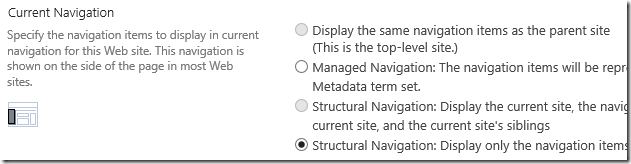
Note: This will work with publishing sites as long as you are not using Managed Metadata Navigation.
Get your web object and the QuickLaunch object:
$web = Get-SPWeb http://yourServer/sites/yourSite
$quicklaunch = $web.Navigation.QuickLaunch
You can explore your existing Quick Launch from here. Just type $quicklaunch and press enter to see your headings / top level nodes. Type $quicklaunch | where {$_.title -eq "Lists"} to see the links in one of the headings. You could even list all of the headings and their children with this one: $quicklaunch | select -ExpandProperty Children | Select {$_.Parent.Title}, {$_.Title}.
Create a new node object:
Each item added to Quick Launch is an SPNavigationNode object. It has three parameters: the text to display, the URL to the linked resource and $true if the link is external to SharePoint or $false if the link is internal to SharePoint. It appears that the $true/$false in the third parameter is used to see if the URL is validated as a real SharePoint URL or not. I could still add SharePoint links by leaving it as $true.
Example for a SharePoint link: (note the $false)
$navnode = New-Object Microsoft.SharePoint.Navigation.SPNavigationNode("Get help!", "/sites/helpsite", $false)
Example for Bing or link external to SharePoint:
$navnode = New-Object Microsoft.SharePoint.Navigation.SPNavigationNode("Bing", http://www.bing.com, $true)
Example for JavaScript:
$navnode = New-Object Microsoft.SharePoint.Navigation.SPNavigationNode("Say Hello!", "javascript:alert('hello')", $true)
Example for JavaScript to open a new dialog box:
(Note the "`" in front of the "$" is needed because "$" means something special in PowerShell. (a variable follows))
$navnode = New-Object Microsoft.SharePoint.Navigation.SPNavigationNode("Add a new task", "JavaScript:var options=SP.UI.`$create_DialogOptions();options.url='/sites/Publishing/Lists/Tasks/NewForm.aspx?RootFolder=&IsDlg=1';options.height = 400;void(SP.UI.ModalDialog.showModalDialog(options))", $true)
For more on JavaScript in Quick Launch see SharePoint: JavaScript in Quick Launch and Top Link Bar! and SharePoint: Opening a 2010 Dialog Box from Quick Launch.
Add the node to Quick Launch
To add the new node as a "heading" just add it to the Quick Launch object:
$quicklaunch.AddAsFirst($navnode) or .AddAsLast
To add the new node as a child of a "heading" then use Where to find that heading:
$heading = $quicklaunch | where {$_.title -eq "Lists"}
$heading.Children.AddAsLast($navnode)
To add the new node after an existing node (i.e. not as First or Last) you will need to retrieve the existing node and then use the .Add method.
$existingLink = $heading.Children | where {$_.title -eq "Search the web with Bing"}
$navnode = New-Object Microsoft.SharePoint.Navigation.SPNavigationNode("Search the web with Google", "http://www.google.com", $true)
$heading.Children.Add($navnode,$existingLink)
Delete a link?
Sure… Just retrieve the node and then call Delete.
$heading | Select -ExpandProperty Children | where { $_.Title -eq "Tasks" } | ForEach { $_.Delete() }
If you know that there's exactly one node that matches the Where test then you can shorten it to this:
($heading | Select -ExpandProperty Children | where { $_.Title -eq "Goog
le" }).Delete()
Bulk updates?
Sure… with extreme caution! Danger! Will Robinson! Danger! Do the following at your own risk. No liability assumed, batteries not included!
Here's an example to add a Help link to every site in a site collection or to all site collections in the entire farm. (You way want to filter out the My Sites and the publishing sites!)
First confirm what you are about to change!
Get-SPSite http://sharepoint/sites/training | Get-SPWeb -Limit All | Select URL, Title
or
Get-SPSite -Limit All | Get-SPWeb -Limit All | Select URL, Title
Create the new link / node.
$navnode = New-Object Microsoft.SharePoint.Navigation.SPNavigationNode("HELP!", "http://yourServer/sites/yourHelpSite", $true)
Now add it to every site in a site collection!
Get-SPSite http://sharepoint/sites/training | Get-SPWeb -Limit All | ForEach { $_.Navigation.QuickLaunch.AddAsFirst($navnode) }
or for all site collections in the farm:
Get-SPSite -Limit All | Get-SPWeb -Limit All | ForEach { $_.Navigation.QuickLaunch.AddAsFirst($navnode) }
And if you want to delete all of those helpful links?
Get-SPSite http://sharepoint/sites/training | Get-SPWeb -Limit All | ForEach { ($_.Navigation.QuickLaunch | where {$_.Title -eq "Help!"}).Delete() }
What about a Publishing Site?
Publishing Sites use the "Navigation" editor for links and it does not permit "URLs" that don't begin with "http". This means that you cannot add JavaScript to a Quick Launch link using that editor. For SharePoint 2010 you can use the workaround here, or for 2010 and 2013 you can use the PowerShell above. (PowerShell to the rescue!) For more on JavaScript in Quick Launch see SharePoint: JavaScript in Quick Launch and Top Link Bar! and SharePoint: Opening a 2010 Dialog Box from Quick Launch.
The PowerShell above will work as long as in your Navigation settings you have not selected "Managed Navigation" or "same as parent".
References:
MSDN's article showing C# examples: (This is for 2010 but applies to 2007-2013.)
https://msdn.microsoft.com/en-us/library/office/ms427791(v=office.14).aspx


